Tournaments
Tournaments let your venue run competitive events on top of the driving sessions GTLane already records. You pick a format and a scoring metric, enter drivers, build rounds and heats, attach each driver’s driving session to their result, and let GTLane rank the heat for you.
Tournaments are fully manual by design: you decide who advances and when. The format you pick shapes the options you see, but GTLane never moves drivers between heats on its own — that keeps you in control for walk-ins, no-shows, and tie-break decisions on race night.
Open Tournaments in the admin sidebar (under Operations, trophy icon) to get started.
Concepts at a glance
Section titled “Concepts at a glance”| Term | Meaning |
|---|---|
| Tournament | The event itself: name, format, scoring metric, status, dates. |
| Driver (entrant) | A customer entered into the tournament, with an optional seed number and group label. |
| Round | A stage of the event (e.g. Qualifying, Quarterfinals, Final), ordered by sequence. |
| Heat | A single race inside a round. Drivers are added to heats as result rows. |
| Result | One driver’s outcome in one heat: position, points, an advanced flag, and an optional linked driving session. |
| Standings | A live table aggregating every result in the tournament per driver. |
A driver can only appear once per heat, but may race in any number of heats across the tournament — that’s what makes last-chance qualifiers and repechage rounds possible.
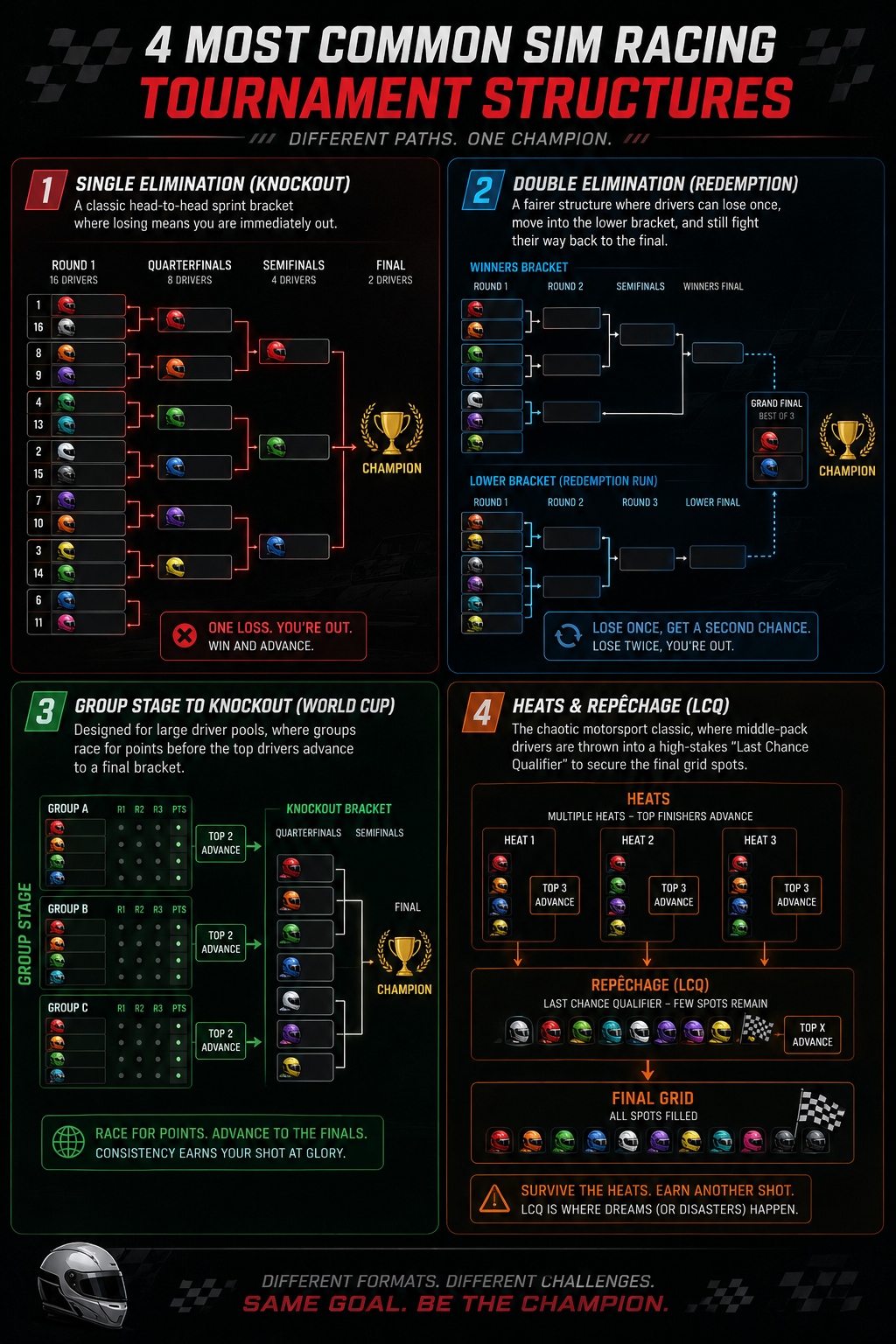
Tournament formats
Section titled “Tournament formats”The format mainly determines which round types you can pick. All five formats use the same building blocks.
| Format | Available round types | Typical use |
|---|---|---|
| Single elimination | Knockout, Final | Classic bracket — heat winners advance, losers are out. |
| Double elimination | Knockout, Redemption, Final | Drivers drop to a losers bracket after a first loss and are only out after two. Rounds can be tagged Winners or Losers side. |
| Groups + knockout | Group, Knockout, Final | Group stage first (use driver group labels), top finishers advance to knockout heats. |
| Repechage / LCQ | Knockout, LCQ, Final | Knockout with last-chance-qualifier heats where eliminated drivers can fight back in. |
| Round robin | Group, Final | Everyone races everyone; the standings table decides the podium. |
Scoring metrics
Section titled “Scoring metrics”The scoring metric drives the Auto-rank button and the default ordering of the standings:
- Best lap — drivers are ordered by their fastest valid lap in the linked driving session (fastest first).
- Total time — drivers are ordered by the sum of their valid lap times (lowest first). Use this for fixed-lap-count races.
- Position points — drivers are ordered by the points you enter manually (highest first). Use this when results come from the sim’s own race finishing order or a points scheme.
For the two telemetry-based metrics, GTLane only counts valid timed laps: invalidated laps and out-laps (laps recorded with a zero time, e.g. the formation lap) are ignored. These are the same rules used for the best-lap figures shown on driving sessions, so the numbers always match.
Creating a tournament
Section titled “Creating a tournament”- Go to Tournaments and click New Tournament.
- Enter a name (and optionally a description) — e.g. Spring Cup 2026.
- Pick the style (format) and scoring metric. A hint under each selector explains the choice.
- Optionally set start and end dates.
- Save. New tournaments start in Draft status.
You can change any of these later from the detail page via Edit — including the status:
- Draft — being set up, not yet racing.
- Active — the event is running.
- Completed — finished; kept for history and standings.
- Cancelled — called off.
Status is informational and also works as a filter on the tournament list; it never blocks editing.
Adding drivers
Section titled “Adding drivers”On the tournament detail page, open the Drivers tab:
- Search for the customer in the driver picker and click Add. Only members of your organization can be entered, and each driver can be entered once per tournament.
- Optionally set a seed (ranking number used to order the list) and a group label (e.g.
A,B).
Removing a driver removes only their entry; any results already recorded for them stay intact.
Building rounds and heats
Section titled “Building rounds and heats”Open the Rounds & Heats tab:
- Type a round name (e.g. Quarterfinals) and click Add Round. Rounds are numbered automatically in the order you create them.
- On the round, optionally pick a round type (the options depend on the tournament format) and — for double elimination — a bracket side (Winners / Losers).
- Inside the round, type a heat label (e.g. Heat 1) and click Add Heat.
Each heat has its own status (Pending → Active → Completed) you can set from the dropdown on the heat — useful on a TV screen or for keeping track during a busy evening.
Recording results
Section titled “Recording results”Inside a heat:
- Pick a driver from the Pick a driver… dropdown and click Add Result. Only tournament entrants who are not already in this heat are offered.
- For each result row you can set:
- Pos — the finishing position (filled automatically by Auto-rank, editable any time).
- Points — manually entered points (required for the position points metric).
- Driving session — link the driver’s actual stint (see below).
- Advanced — toggle on for drivers you promote to the next round. This is your bookkeeping flag; create their result row in the next round’s heat yourself.
Linking driving sessions
Section titled “Linking driving sessions”The driving-session dropdown lists that driver’s recent sessions with date, track, and best lap, so the session recorded by SimHub during their stint is easy to spot. Linking a session is what powers auto-ranking and the lap-time columns.
A few things to know:
- The list only ever offers sessions belonging to that driver. If the stint was recorded against the wrong customer, fix it first on the Driving Sessions page (Change driver), then link it here.
- You can clear the link by selecting No session.
- If a linked driving session is later deleted, the result and its recorded position survive — only the lap-time data disappears.
Auto-ranking a heat
Section titled “Auto-ranking a heat”Once results have sessions (or points) attached, click Auto-rank on the heat. GTLane orders the heat by the tournament’s scoring metric and writes positions 1, 2, 3, … onto the results:
- Best lap: fastest valid lap, ascending.
- Total time: sum of valid laps, ascending.
- Position points: points, descending.
Drivers with nothing to rank on (no linked session, no valid laps, or no points) always sort to the bottom. Auto-rank is just a helper — you can overwrite any position by hand afterwards, and you can re-run it whenever the data changes.
Standings
Section titled “Standings”The Standings tab aggregates every recorded result in the tournament per driver:
| Column | Meaning |
|---|---|
| Heats | Number of heats the driver has a result in. |
| Wins | Heats finished in position 1. |
| Points | Sum of points across all results. |
| Best lap | Fastest valid lap across all linked sessions. |
| Total time | Sum of valid lap times across all linked sessions. |
| Group | The driver’s group label, for reading group tables. |
Drivers are ranked by the tournament’s scoring metric (with wins as the tie-breaker). The table updates live as you record results — perfect for showing between rounds.
Deleting a tournament
Section titled “Deleting a tournament”Delete from the tournament list (open the edit sheet → Delete tournament) or from the detail page. Deleting removes the tournament from all lists along with its rounds, heats, and results. The linked driving sessions themselves are never touched — they remain on the customers’ profiles.
All tournament changes (creation, edits, results, auto-ranks, deletions) are recorded in the Activity Log, so you can always trace who changed what during an event.
Example: a one-night knockout cup
Section titled “Example: a one-night knockout cup”A typical 8-driver evening with the single elimination format and best lap scoring:
- Create the tournament: style Single elimination, metric Best lap, status Active.
- Add the 8 drivers in the Drivers tab.
- Create round Semifinals (type Knockout) with Heat 1 and Heat 2, 4 drivers each.
- As each driver finishes their stint, link their driving session to their result row.
- Click Auto-rank on each heat. Toggle Advanced on the top 2 of each heat.
- Create round Final (type Final) with one heat, add the 4 advanced drivers, race, link sessions, Auto-rank.
- Set the tournament to Completed and show the Standings tab on the venue screen.